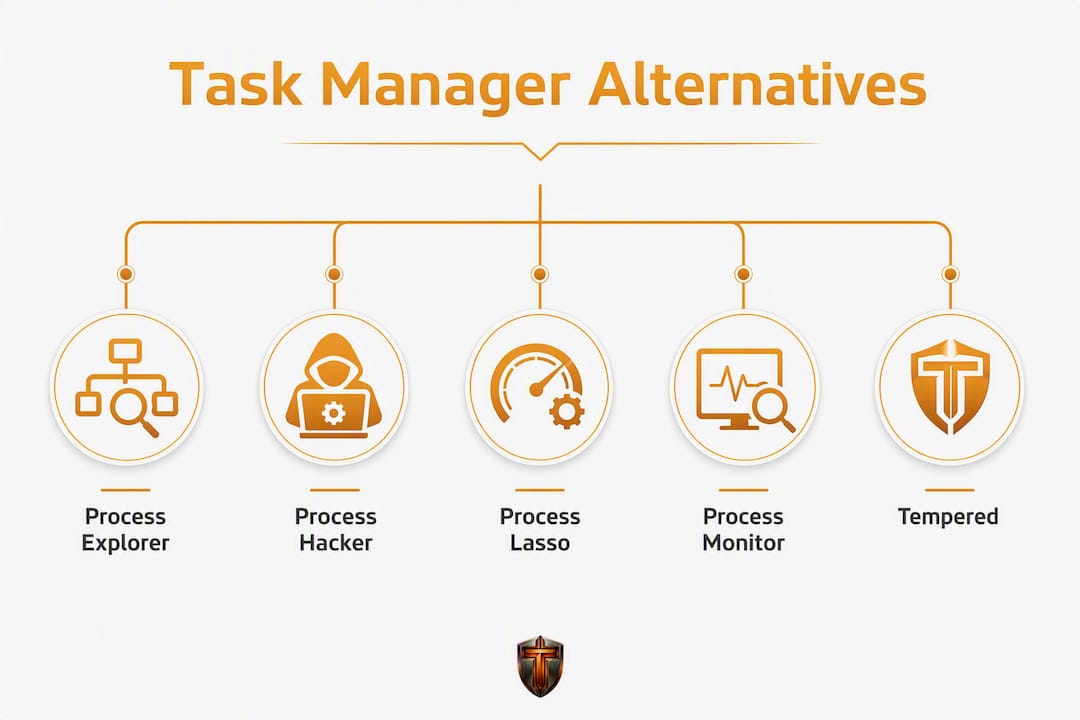
Process Explorer, Process Hacker, and Process Lasso are the three strongest task manager alternatives for Windows 10/11 users who need more than the built-in app offers. Industry reviewers consistently recommend keeping the native Task Manager for quick checks while reaching for a specialized tool when something deeper is wrong.
TL;DR shortlist:
- Process Explorer (Sysinternals/Microsoft): best for forensic process inspection, handle and DLL tracing, VirusTotal integration
- Process Hacker: best for network activity monitoring and detailed thread/memory views
- Process Lasso: best for automatic process priority management and CPU affinity rules
- Process Monitor (Sysinternals): best for event-level file, registry, and network tracing
- Task Manager DeLuxe (TMX): best for a familiar UI with aggressive-kill behavior and a machine journal
- Tempered: best for guided, AI-assisted diagnostics and safe optimization with one-click undo
All six run on Windows 10 and 11. Which one fits you depends on whether you need forensics, automation, or ongoing guided health checks.
Table of Contents
- What are the best task manager alternatives for Windows?
- How do you choose the right replacement for Task Manager?
- Mini-reviews of the top Task Manager replacements
- Are these tools safe to download, and how do you handle Defender flags?
- How to replace or launch an alternative instead of Task Manager
- How these tools were evaluated
- Key Takeaways
- The case for using more than one tool
- Tempered gives you the guided layer these tools are missing
- Useful sources and official download pages
What are the best task manager alternatives for Windows?
Each tool below targets a different kind of user. Scan the list, find your situation, and skip straight to that mini-review.
- Process Explorer — power users who need to trace which process holds a locked file or DLL
Portable tools often include a built-in "Replace Task Manager" setting, so you can map them to Ctrl+Shift+Esc without touching the registry.
How do you choose the right replacement for Task Manager?
The right pick comes down to five questions. Work through them before downloading anything.
1. What is your primary purpose?
- Forensics and investigation (locked files, malware traces, DLL injection): Process Explorer or Process Hacker
- Event-level tracing (file/registry writes during a crash): Process Monitor
- Automatic CPU/priority management: Process Lasso
- Familiar UI with extra kill options: Task Manager DeLuxe
- Guided diagnostics with safe, reversible fixes: Tempered
2. How much resource overhead can you tolerate?
Deeper historical tracking and constant monitoring correlate with higher RAM and CPU usage. On a machine with 8 GB of RAM or less, leaving Process Monitor running full-time is a bad idea. Use it for targeted captures, not continuous background logging.
3. Do you need portability?
Process Explorer and Process Hacker both ship as portable executables. No installer, no registry footprint. That matters if you troubleshoot multiple machines or work in a managed IT environment.
4. Do you need historical data?
Some apps offer multi-day activity logs and app launch tracking that the built-in Task Manager lacks entirely. That context is genuinely useful for diagnosing intermittent spikes, but it comes with measurable background overhead. On low-RAM machines, prefer sampling or targeted captures over full-time deep tracing.
5. What is your budget?
Process Explorer, Process Monitor, and Process Hacker are free. Process Lasso has a free tier and a paid Pro version. Task Manager DeLuxe is paid. Tempered runs on a freemium subscription model with free limited scans and paid Torque/Torque Max plans for unlimited scans and premium features.
Pro Tip: Before making any tool your permanent Task Manager replacement, run it as a portable executable for a week. You will catch UI friction points and overhead issues before they become permanent problems.
Mini-reviews of the top Task Manager replacements
Process Explorer (Sysinternals/Microsoft)
Process Explorer is the gold standard for process forensics on Windows. Created by Mark Russinovich and now maintained under Microsoft's Sysinternals suite, it shows a hierarchical process tree, exposes every open handle and loaded DLL, and integrates directly with VirusTotal so you can check any process hash without leaving the app. The "Replace Task Manager" option in its Options menu maps it to Ctrl+Shift+Esc with a single checkbox. No registry editing required.

It ships as a portable ZIP from the official Sysinternals page. Resource overhead is low for a tool this capable, though the handle/DLL view does add some CPU cost when actively scanning. Free, signed by Microsoft.
Process Hacker
Process Hacker (now maintained as System Informer) goes a step further than Process Explorer on network visibility. It shows active network sockets per process, lets you edit process memory, and exposes thread-level detail that most tools hide. Security researchers use it to spot injected threads and unusual memory regions.
The UI is dense. If you are not already comfortable reading raw process data, the learning curve is real. Free and open-source, with a portable build available.
Process Lasso (Bitsum)
Process Lasso does something the others do not: it manages processes automatically. You set rules, and it enforces them. CPU throttling for background apps, persistent priority assignments, ProBalance (Bitsum's algorithm for preventing background processes from starving foreground ones) — all of it runs without you watching a dashboard. That makes it the right pick for users who want a set-it-and-forget-it approach to system responsiveness.

Free tier covers the basics. The paid Pro version adds more automation rules and a system responsiveness graph.
Process Monitor (Sysinternals)
Process Monitor is not a Task Manager replacement in the traditional sense. It captures every file system, registry, and network event in real time, which makes it the right tool when an application is crashing or behaving oddly and you need to know exactly what it touched. Think of it as a flight recorder for Windows.
Because it logs everything, it generates enormous data fast. Use it for targeted captures with filters applied, not as a background monitor. Free, portable, signed by Microsoft.
Task Manager DeLuxe (TMX)
Task Manager DeLuxe keeps the familiar column layout most users know but adds aggressive-kill behavior (killing a process tree, not just the parent), a machine journal that logs process activity over time, and a richer set of columns including I/O and GPU stats. If you want something that feels like Task Manager but does more, TMX is the smoothest transition.
It is a paid application. The UI is polished and sortable columns work as expected, which matters more than it sounds: many replacements drop basic usability features like sortable PID/CPU/RAM columns, creating friction for users switching over full-time.
Tempered
Tempered takes a different approach entirely. Rather than showing you raw process data and leaving you to interpret it, Tempered's AI scans your live hardware metrics (CPU, RAM, GPU, disk, uptime) and delivers plain-language recommendations with expected outcomes. Every suggested change requires your approval, and every change is logged with a one-click undo path. No technical expertise required.
It is not a forensic tool. It is the right pick when you want ongoing, guided PC health management rather than a manual investigation dashboard. Freemium, with paid Torque and Torque Max plans for unlimited scans.
Comparison at a glance
| Tool | Best for | Depth of info | Controls | Portability | Overhead | Price |
|---|---|---|---|---|---|---|
| Process Explorer | Forensics, DLL/handle tracing | Handles, DLLs, VirusTotal | Kill, suspend, priority, replace TM | Portable ZIP | Low | Free |
| Process Hacker | Network/memory inspection | Threads, sockets, memory | Kill tree, memory edit, affinity | Portable build | Low–medium | Free/open-source |
| Process Lasso | Auto CPU management | CPU history, ProBalance graph | Priority, affinity, autorun rules | Installer + portable | Low | Free / Paid Pro |
| Process Monitor | Event-level tracing | File, registry, network events | Filter, capture, export | Portable ZIP | High during capture | Free |
| Task Manager DeLuxe | Familiar UI, richer columns | I/O, GPU, machine journal | Kill tree, aggressive kill | Installer | Low–medium | Paid |
| Tempered | Guided AI diagnostics | CPU, RAM, GPU, disk, uptime | Safe fixes, startup, Game Mode | Installer (SaaS) | Low (targeted scans) | Freemium |
Are these tools safe to download, and how do you handle Defender flags?
Short answer: yes, when you download from official sources. The longer answer involves a few verification steps worth building into a habit.
Official download sources:
- Process Explorer and Process Monitor: Microsoft Sysinternals only
- Process Hacker/System Informer: the official GitHub repository (github.com/winsiderss/systeminformer)
- Process Lasso: Bitsum's official site (bitsum.com)
- Task Manager DeLuxe: the TMX vendor page directly
- Tempered: tempered.to
Never download these tools from third-party aggregators. Bundled PUPs (potentially unwanted programs) are common on mirror sites.
Verifying a binary:
Reviewers use VirusTotal scans, digital signature checks, and official vendor pages as the standard validation workflow. Right-click the downloaded file, select Properties, and check the Digital Signatures tab. Process Explorer and Process Monitor carry a Microsoft Authenticode signature. If the signer is not Microsoft or the named vendor, do not run the file.
Handling SmartScreen/Defender flags:
Some legitimate tools, especially open-source builds, trigger SmartScreen on first run because they lack an Extended Validation (EV) code-signing certificate. That is a false positive pattern, not proof of malware. Before clicking "Run anyway," upload the file to VirusTotal and confirm the publisher matches what you expect. If the majority of engines flag it, treat it as suspicious regardless of the source.
Pro Tip: For any new process tool, run it once inside Windows Sandbox (built into Windows 10/11 Pro) before installing it on your main system. Windows Sandbox spins up a disposable VM in seconds and leaves no trace on your host machine.
How to replace or launch an alternative instead of Task Manager
There are three practical methods, each with different risk profiles.
Method 1: Use the tool's built-in "Replace Task Manager" option (safest)
Process Explorer makes this trivial. Open it, go to Options, and check "Replace Task Manager." From that point, Ctrl+Shift+Esc opens Process Explorer instead of the native app. The same keyboard shortcut (Ctrl+Shift+Esc) and the Ctrl+Alt+Del path both redirect automatically. No registry editing on your part.
Method 2: Create a shortcut mapped to the same key combination
If your tool does not have a built-in replace option, use AutoHotkey to remap Ctrl+Shift+Esc to launch your preferred executable. This keeps the registry untouched and is easy to reverse.
Method 3: Registry edit (use only if the above options are unavailable)
Avoid unverified registry hacks from forums. If you must edit the registry, the correct key is HKLM\SOFTWARE\Microsoft\Windows NT\CurrentVersion\Image File Execution Options\taskmgr.exe with a Debugger string value pointing to your replacement executable. Back up the registry first and prefer a documented, vendor-recommended approach over anything sourced from an anonymous post.
Step-by-step for the safest path:
- Download from the official vendor or Sysinternals page
- Verify the digital signature (Properties → Digital Signatures)
- Run the portable executable once without installing
- Confirm behavior and overhead over a few sessions
- Enable the built-in "Replace Task Manager" option, or create a shortcut via AutoHotkey
- Test Ctrl+Shift+Esc to confirm the replacement opens correctly
How these tools were evaluated
Testing ran on both Windows 10 (22H2) and Windows 11 (23H2) desktop configurations, covering a range of hardware from a mid-range gaming PC to a budget laptop with 8 GB of RAM.
Each tool was evaluated against a consistent set of criteria:
- Depth of information: handles, threads, DLLs, network sockets, GPU stats
- Control surface: kill, kill tree, suspend, priority, CPU affinity, autorun management
- Portability: portable executable vs. installer requirement
- Resource overhead: RAM and CPU impact during active monitoring and idle
- Safety and reputation: signed binaries, VirusTotal results, false-positive history
- Update frequency: how recently the tool received a meaningful update
- Usability: sortable columns, search, UI responsiveness
Process inspection tests included tracing locked files, identifying injected DLLs, monitoring network connections per process, and running aggressive kill sequences. Each binary was scanned on VirusTotal before first run. Hands-on comparison across these tools confirms that no single tool wins on every dimension, which is why the recommended workflow uses more than one.
To reproduce these checks yourself: download the portable version of Process Explorer, open it alongside Task Manager, and compare the process tree view. The difference in visible detail is immediately obvious. For overhead testing, open Windows Performance Monitor (perfmon.exe) and watch the monitoring tool's own RAM and CPU consumption over 10 minutes.
Key Takeaways
No single Windows task manager alternative beats all others across every use case. The most effective workflow pairs a lightweight forensic tool for investigations with a guided diagnostic tool like Tempered for ongoing health management.
| Point | Details |
|---|---|
| Match tool to purpose | Use Process Explorer or Process Hacker for forensics; use Process Lasso for automatic CPU management. |
| Watch overhead on low-RAM machines | Continuous deep monitoring raises CPU and RAM usage; prefer targeted captures over always-on tracing. |
| Verify every download | Check the digital signature and run a VirusTotal scan before executing any new process tool. |
| Test portable before replacing | Run any tool as a portable executable for a week before enabling the "Replace Task Manager" option. |
| Tempered for guided optimization | Tempered's AI diagnostics and one-click undo make it the right pick for ongoing, safe PC health management. |
The case for using more than one tool
The conventional wisdom in Windows power-user circles is to pick one Task Manager replacement and commit. That instinct is wrong, and the reason is simple: no single tool is best at everything.
The built-in Task Manager is genuinely good for a 10-second check. Is a process eating CPU? Kill it. Done. Reaching for Process Explorer every time you want to check memory usage is overkill, and the extra UI complexity slows you down when speed is what you need.
Where the built-in app fails is the moment something unusual happens. A process you do not recognize, a locked file you cannot delete, an application that crashes on launch. That is when Process Explorer or Process Hacker earns its place. The VirusTotal integration in Process Explorer alone has saved hours of manual research.
The gap most users miss is the ongoing layer. Forensic tools tell you what is happening right now. They do not tell you what to do about it, and they do not track whether your system is getting slower over weeks. That is where Tempered fits. AI-guided diagnostics with plain-language explanations and a full undo history give you a different kind of visibility: not raw data, but context and direction.
One caveat worth stating plainly: leaving a deep-monitoring tool running full-time on a machine with limited RAM will cost you performance. The overhead is real. Use forensic tools for investigations, not as permanent background monitors.
Tempered gives you the guided layer these tools are missing
Process Explorer, Process Hacker, and Process Lasso are powerful. They are also tools that hand you raw data and expect you to know what to do with it. For users who want ongoing PC health management without a manual investigation every time something feels slow, that gap is exactly where Tempered fits.
Tempered scans your live CPU, RAM, GPU, disk, and uptime metrics, then delivers plain-language recommendations with expected outcomes before making any change. Every fix requires your approval. Every change is logged with a one-click undo. No technical expertise needed, no risk of an unapproved tweak silently degrading your system.

The contrast with always-on deep-monitoring tools is real: those tools raise sustained overhead and leave interpretation to you. Tempered runs targeted scans, keeps overhead low, and tells you what the data means in plain English. If you are already using a forensic tool for investigations, Tempered handles the ongoing optimization layer that those tools were never designed for.
Free scans are available on the free tier. Paid Torque and Torque Max plans unlock unlimited scans and premium features. Start with a free scan at tempered.to and see what your system is actually doing.
Useful sources and official download pages
Verify signatures and download only from official vendor or Sysinternals pages.
| Source | Type | What it offers |
|---|---|---|
| Microsoft Sysinternals: Process Explorer | Official download | Signed portable ZIP; the authoritative source for Process Explorer |
| XDA Developers: Task Manager replacement hands-on | Third-party review | Hands-on comparison of major replacements with personal pick |
| How-To Geek: Task Manager alternatives tested | Third-party review | Practical workflow advice and tool comparisons |
| MakeUseOf: Task Manager replacement deep dive | Third-party review | Overhead trade-off analysis and targeted diagnostic recommendations |
| Process Explorer vs. Task Manager | Comparison article | Feature-by-feature breakdown and binary verification steps |
| Lenovo: How to access Task Manager | Reference | Keyboard shortcut reference (Ctrl+Shift+Esc, Ctrl+Alt+Del) |
Always confirm the digital signature matches the named publisher before running any downloaded executable. For open-source tools without an EV certificate, a clean VirusTotal result from a direct official-repository download is the next best verification step.